This article answers a couple of questions that have been raised by members.
When reading the newsletter on line, found HERE, you can make changes to what you are seeing on your screen to help you read it more easily, should you need to.
Look at the bottom of the newsletter to see this menu:
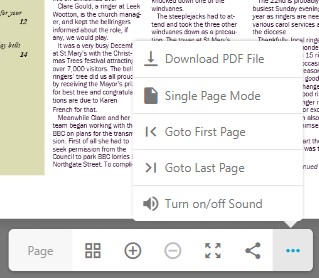
From left to right:-
- Page – this simply shows the page number.
- Four squares – this puts thumbnails down the left of the screen, to allow you to move quickly between pages.
- + and – symbols – these symbols allow you to move the newsletter’s text size up and down.
from this to this
- Four arrows pointing out – this makes the newsletter fill your browser window – also increasing the font size.
- One to Two dots – this shows you a link that you can copy to send to another person so that they can find the newsletter directly.
- Three Dots – this brings up the menu that is shown above them in this image – again “Single Page Mode” increases the font size.
Of course, you can also use the “Zoom” feature of your browser to magnify the page.